For physical computing or amateur science projects, you often need to be able to get the output of a sensor or transducer into your computer.  There are a lot of ways to do this with specialized data acquisition hardware and software.  This method is pretty old school, and requires only a standard laptop and a handful of inexpensive electronic components.  It may be appropriate if you are working in a relatively quiet environment and you don’t need to take a lot of samples per second.

Just about any physical signal or measurement in the world can be converted into a fluctuating voltage, an analog signal.  Most laptops have a built-in microphone, so if you can convert your voltage into an audible signal, you can use the microphone to digitize it.  Once it is in digital form, you can then process the signal with any programming language.  Here we’ll use Mathematica.

The electronic side of the project is a very simple metronome (or tone generator) based on the 555 timer.  It is a mashup of two circuits from Forrest Mims’ work, the V/F Converter on page 51 of his Science and Communication Circuits and Projects and the Audio Oscillator / Metronome on p. 22 of his Timer, Op Amp and Optoelectronic Circuits and Projects.

The changing voltage from a sensor or transducer is fed into pin 5 on the timer.  For voltages between about 1.25v and 4.70v, the timer will respond with chirps or clicks that are more-or-less frequent: the frequency depends on the voltage.  With lower voltages, the frequency is higher, and with higher voltages it is lower.  The variable resistor can be used to tune the center of the frequency range.  Increasing the value of the capacitor decreases the frequency and makes each individual chirp longer.  Decreasing the value of the capacitor increases the frequency and makes each chirp shorter.  For the test here, the variable resistor was set to 100K measured with a digital multimeter.  The piezo element was rated for 3-20v, 10mA.  You can make the circuit portable by powering it with a 9v battery, but you might have to adjust the values of the resistors and capacitor for best results.  I used a bench power supply and proto-board for my experiments.

To make a sample signal, I connected the signal line to a power supply set at 4.7v, decreased it by hand to 1.25v, then increased it back to 4.7v.  The circuit responded by producing slower, faster and slower clicks.  If you would like to listen to the recording, there are MP3 and WAV files in the GitHub repository.

My original plan was to use the SystemDialogInput[ "RecordSound" ] command to record the audio directly into Mathematica, but that feature is unfortunately not supported on Macs yet.  So I recorded the sample using Audacity instead, and then used the Import command to load the sound file into Mathematica.

My complete Mathematica notebook is available for download on GitHub.  Here are the highlights.

We load the signal in as data, and plot every thousandth point to get an idea of what it looks like.  Since we sampled the sound at 44100 Hz, there will be 44100 data points for each second of audio, or 44.1 data points per millisecond.  The duration of each click is on the order of 10 milliseconds or less, so we won’t be able to make out individual clicks this way.

signalData = Flatten@Import[path <> "sample-data.wav", "Data"];
ListLinePlot[
   signalData[[1 ;; Length[signalData] ;; 1000]],
   ImageSize -> Full, AspectRatio -> 0.25, PlotRange -> All,
   Joined -> False, Filling -> Axis]

Near the beginning of the sample, the clicks are relatively sparse.  If we start at the 3 second mark and plot every point for 50 milliseconds of our data, we can see one click.

second=44100;
msec=N[second/1000];
sparseRegion=signalData[[(3*second) ;; (3*second) + Round[50*msec]]];
ListLinePlot[sparseRegion,
    ImageSize -> Full, AspectRatio -> 0.25, PlotRange -> All,
    Joined -> False, Filling -> Axis]

We are interested in pulling out the clicks, so we take the absolute value of our data, then use the MovingAverage command to smooth it a bit.  Averaging over ten data points seems to give us a sharp peak.

ListLinePlot[MovingAverage[Abs[sparseRegion], 10],
    ImageSize -> Full, AspectRatio -> 0.25, PlotRange -> All,
    Joined -> False, Filling -> Axis]

Now we can use a thresholding function that returns 1 when the signal is above a given level and 0 otherwise. We use Map to apply the function to each data point.

thresholdFunction[value_, threshold_] :=
    If[value > threshold, 1, 0]
threshold = 0.25;
ListLinePlot[
    Map[
        thresholdFunction[#, threshold] &, 
        MovingAverage[Abs[sparseRegion], 10]], 
    ImageSize -> Full, AspectRatio -> 0.25, PlotRange -> All, 
    Joined -> False, Filling -> Axis]

This looks pretty good when the clicks are infrequent. We need to make sure that it will work in a region of our signal where clicks are more frequent, too. We look at a 50-millisecond-long region 10 seconds into our signal, doing the same processing and plotting the results.

denseRegion=signalData[[(10*second) ;; (10*second) + Round[50*msec]]];

Since our thresholding looks like it will work nicely for our data, we can apply it to the whole dataset.

signalThresholded = 
    Map[thresholdFunction[#, threshold] &, 
        MovingAverage[Abs[signalData], 10]];

Now we need to count the number of clicks that occur in a given interval of time. We will do this by using the Partition command to partition our data into short, overlapping windows. Each window will be 200 milliseconds long, and will overlap those on its left and right by 100 milliseconds each. To count clicks, we will use the Split command to split each window into runs of similar characters (i.e., all 1s or all 0s) then Map the Total function over each of the resulting lists. If there are more than, say, five 1s in a row, surrounded on either side by a run of 0s, we can assume that a click has occurred.

signalThresholdedPartition = 
    Partition[signalThresholded, Round[200*msec], Round[100*msec]];
countClicks[window_] :=
    Total[
        Map[If[# > 5, 1, 0] &, 
            Map[Total, Split[window]]]]

We can now plot the number of clicks per window. This shows us that the voltage starts high, drops, then increases again. Note the spike in the middle, which represents a dense cluster of clicks. Looking at the raw signal, this appears to have been a burst of noise. At this point, we have a workable way to convert a varying voltage into a digital signal that we can analyze with Mathematica. For most applications, the next step would be to calibrate the system by recording audio samples for specific voltages and determining how many clicks per window was associated with each.

ListLinePlot[Map[countClicks, signalThresholdedPartition]]


In Sex, Drugs and Cocoa Puffs, Chuck Klosterman has an essay that describes his experience playing The Sims:

My SimChuck has absolutely no grit.  He is constantly bummed out, forever holding his head and whining about how he’s ‘not comfortable’ or ‘not having fun.’  At one point I bought him a pretty respectable wall mirror for $300, and he responded by saying ‘I’m too depressed to even look at myself.’  As an alternative, he sat on the couch and stared at the bathroom door. … I hope I never own a bed.  But don’t tell that to SimChuck.  Until I bought him his $1,000 Napoleon Sleigh Bed (‘made with actual wood and real aromatic cedar’), all he did was cry like a little bitch.

Now you might be thinking to yourself that this doesn’t sound very productive, but surely, if there’s one thing that we know about computer games, it’s that they’re supposed to teach us the skills that we need to get by in our real lives.  So instead of trying to instill some grit in a Sim, what happens if you apply the same thinking to your own routine?

Take any simple thing that you already know how to do–eat, brush your teeth, dress yourself, answer the phone, write a book (any of the things that you’d think shouldn’t faze your Sim)–take one of those things and measure it along any dimension(s) that you care about.  Then break it into a bunch of tiny moving parts, and try to improve them one at a time.  When you’ve put the process back together, measure it again to see if your changes made a difference.  Revert any change that didn’t improve things.

Programmers call this “refactoring,” but really it isn’t a new idea.  In Walden, Thoreau wrote that “To affect the quality of the day, that is the highest of arts.”  Academics should already know that process is more important than product, as the idea shows up in various guises throughout the canon, but its surprising how few of them act like they know it.  Really, your CV shares the same relationship to a life of research and teaching as a coprolite does to a good meal.

When I return from my sabbatical, the second thing that people are going to ask me is “was it productive?”  I think I’m going to say, “Well… it was byproductive.”  And then we’ll see where the conversation goes from there.

From 2005 to 2008 I kept a research weblog called Digital History Hacks. As an open access, open content publishing platform, the blog served my purposes nicely. It was less well suited to sharing open source code, however, and didn’t support humanistic fabrication at all. Adding a private wiki helped a little bit, but didn’t go nearly far enough. So I decided to build The New Manufactory around the following ideas.

Working in the Heraclitean mode. If it ever made sense to divide scholarship into phases of research and writing, it no longer does. We now have to work in a mode where things around us are constantly changing, and we’re trying to do everything, all the time. As Heraclitus supposedly said, “all is flux.” So until your interpretation stabilizes…

  • You keep refining your ensemble of questions
  • Your spiders and feeds provide a constant stream of potential sources
  • Unsupervised learning methods reveal clusters which help to direct your attention
  • Adaptive filters track your interests as they fluctuate
  • You create or contribute to open source software as needed
  • You write/publish incrementally in an open access venue
  • Your research process is subject to continual peer review
  • Your reputation develops

Assemblages and rhizomes. Digital scholarship adds algorithms, source code, digital representations, version control, networked collaborators, application programming interfaces, simulations, machine learners, visualizations and a slew of other new things to philology. Beyond that, fabrication adds tools, instruments, materials, machines, workbenches, techniques, feedstock, fasteners, electronics, numerical control, and so on. The things that we have to figure out don’t come in neat packages or fit into hierarchies.

A tight loop between digitization and materialization. Digital representations have a number of well known qualities: they’re perfectly plastic, can be duplicated almost without cost, transmitted in the blink of an eye and stored in vanishingly small physical spaces. Every digital source can also be the subject of computational processing. So it makes a lot of sense to create and share digital records. Freeing information in this social sense, however, doesn’t mean that information can or should always be divorced from material objects or particular settings. We can link the digital and material with GPS, RFIDs, radio triangulation, barcodes, computer vision or embedded network servers. We can augment the material world with digital sources, and increasingly we can materialize digital sources with 3D printers or inexpensive CNC mills and lathes.

Everything should be self-documenting. Recording devices like sensors, scanners and cameras can be built into the workbench. They can automatically upload and archive photographs, videos, audio files and other kinds of digital representations. Electronic instruments can be polled for measurements. Machine tools can report their status via syndicated feeds. When we make and use things in the world, we can make and make use of born-digital data, too.

Co-presence and telepresence. Human beings (and other primates) learn by watching one another’s eyes and hands, so why not make it possible to do this remotely? Workers at a pair of augmented workbenches could be made aware of one another’s actions by a stream of low-latency signals. Sensors and actuators could support remote gesture, touch, manipulation and a sense of presence. Services like Pachube can be used to leverage this information, so that it can be remixed and repurposed.

This is a Darwin RepRap that was built by WJT from a kit from Bits from Bytes. It was started in May 2009, and first successfully printed on 27 November 2009. A heated bed was added in May 2010, built in the Czech Republic by Josef Prusa.

About This Build

  • Build: May 2009 – June 2009
  • Tuning: June 2009 – December 2009
  • First successful print: 27 November 2009
  • Tuning with heated bed: May 2010

Contents

  1. Image Gallery
  2. Useful Links
  3. Skeinforge Settings for Unheated Bed
  4. Skeinforge Settings for Heated Bed

Image Gallery

Go to the image gallery at Flickr.

Useful Links

Skeinforge Settings for Unheated Bed

  • Material: ABS from MakerBot.com
  • Start with Rapman ABS default settings
  • No extruder fan for any prints
  • Smaller parts (less than 50mm on a side with raft)
    • Feed Rate 12 mm/s
    • Raft Temp 235 C
    • First Layer 230 C
    • Next Layers 240 C
    • Raft Margin 5 mm
    • Extrusion 270 (27 RPM)
  • Medium parts
    • Feed Rate 8 mm/s
    • Raft Temp 233 C
    • First Layer 228 C
    • Next Layers 238 C
    • Raft Margin 10 mm
    • Extrusion 250 (25 RPM)

Skeinforge Settings for Heated Bed

  • Test Raft
    • Started with 500 W power supply
    • Test raft breaks free when thermistor temp is 46 C (infrared temp around 62 C)
    • Test raft sticks when thermistor temp is 61-63 C (IR temp around 77-80 C)
    • Feed Rate 20.7 mm/s
    • Head Speed 4.0 mm/s
    • Raft Temp 235 C
    • Bed Target Temp 100 C
  • Raftless Object
    • Still having problems getting a raftless object to stick to the bed (with kapton tape on aluminum). Current ratio of flow rate to feed rate is 17.86
    • Bed Temp 100 C
    • Feed Rate 28.0 mm/s
    • Flow Rate (Extrusion) 500 (50 RPM)
    • Temp of Raft 238
    • Temp of First Layer 238
    • Temp of Shape 238 C
    • Raft Base Layers 0
    • Raft Interface Layers 0
    • Things to Try Next…
      • Replace Power Supply with 750 W unit
      • Update Skeinforge
      • Increase temp a little bit (240 C?)
      • Increase feed rate while keeping flow:feed ratio the same or raising it slightly
      • Up flow rate to feed rate ratio a bit
      • Install Raftless plug in?

The MakerBot Cupcake is a RepRap-derived 3D printer. I built machine number 00018 between 24 April 2009 and 18 February 2010.

About This Build

  • Machine number: 18
  • Build: 24 Apr 2009 – 15 Feb 2010
  • Tuning: 15 Feb 2010 – 18 Feb 2010
  • First Successful Print: 18 Feb 2010

Contents

  1. Image Gallery
  2. Useful Links
  3. Testing the Electronics
  4. Tuning
  5. Thermistor Settings
  6. Skeinforge Settings

Image Gallery

Go to the image gallery at Flickr.

Useful Links

Testing the Electronics

  • Opto-endstops
    • Checked all connections with dissecting microscope set at 0.7 x 10x
    • Re-soldered one loose joint
    • Used PB-503 proto-board to build a little test rig for both kinds of connection
    • All endstops seem to be working correctly
  • Stepper motor drivers
    • Checked all SMD and through-hole connections with dissecting microscope
    • Had to ground the sense line of the ATX power supply unit to get it to power on without a computer attached (following Masked Retriever’s hack)
    • Checked that green power LED comes on for all stepper motor drivers
  • Burning the bootloader
    • Used Arduino 0017 on Mac OS X with Sanguino 1.4-r1 support
    • USBTinyISP needs to have jumper across two pins near cables in order to provide +5V to Sanguino
    • Power LED on Sanguino doesn’t light up even though Arduino software claims that bootloader burns successfully
  • Firmware
    • Using RepRap Gen 3 Firmware 1.2
    • Don’t forget to copy reprap-r3g-firmware-1.x/libraries/* to arduino-00xx/hardware/libraries/ (otherwise you will get an error that it can’t find simplepacket.h)
  • Debugging
    • The power LED never lights up on the Sanguino
    • Unfortunately I am now getting the following error: “avrdude: stk500_recv(): programmer is not responding”
    • Tried connecting LED to Pin 13 and resetting. It doesn’t flash, which suggests something may be wrong with bootloader. When I power with the ATX power supply and hit the reset button, the Debug light flashes 4 times; the power light doesn’t come on at all.
    • Tried putting a low voltage through the SMD LEDs that indicate Power and Debug (on the LEDs, cathode is marked with green stripe). Both LEDs work.
    • Replaced motherboard.
    • Once motherboard replaced, extruder controller and stepper motor drivers work perfectly
    • Invert Y axis in ReplicatorG

Tuning

  • First mini mug is eye-shaped when looking down at it from above. Loose belt on X axis.
  • ABS sticks to foamcore but object pops loose halfway through build. Made an acrylic plate to cover the build platform, covered one side with kapton tape and roughed the other with sandpaper.
  • Natural ABS extrudes smoothly at 220 degrees C
  • Difficult to get ABS to stick to the platform
  • Part way through a full day of tuning, realized that the idler wheel had slipped sideways off of the bearing and the filament was jammed beside it. Disassembled extruder and rebuilt idler wheel and bearing with Special T cyanoacrylate. Johnny Russell also suggested using a zip tie as a filament guide, shown in this photo. If the problem recurs, might try double-thick idler wheel or machining new one out of some other material.

Thermistor Settings

  • Assume I have older (1mm) thermistor – didn’t measure it before building extruder
  • Beta=4881, r0=93700, t0=24

Skeinforge Settings

  • Material: MakerBot Natural ABS
  • Start with Configuring Skeinforge page
  • N.B. These settings are pretty good, but could use a little more tuning; see the “Fundamental Settings” section of the Configuring Skeinforge page to get them perfect
  • Carve
    • Layer Height: 0.4
  • Raft
    • Temperature of Raft: 220
    • Temperature of Shape Next Layers: 220
    • Temperature of Shape First layer Outline: 220
    • Temperature of Shape First Layer Within: 220
    • Temperature change times: 0
    • Interface Layers: 0
    • Base Layer Thickness over Layer Thickness: 1.7
    • Raft Outset Radius Over Extrusion Width: 10
  • Speed
    • Flowrate Choice: PWM
    • Flowrate PWM Setting: 255
    • Feedrate: 25
  • Fill
    • Solid Surface Thickness: 3
    • Extra Shells On Sparse Layers: 2
    • Extra Shells on Base Layers: 3
    • Extra Shells On Alternating Solid Layers: 1
    • Infill Pattern: Grid Rectangular
  • Deactivated modules
    • Cool
    • Hop
    • Oozebane
    • Stretch
    • Unpause
    • Comb
    • Multiply
    • Polyfile
    • Wipe


Let me wrap up this series of posts by suggesting that the most important aspect of the method is to practice what is called kaizen in Japanese: make continuous small improvements.  Part of this is simply a willingness to keep tweaking something even while it is working.  The other part is an ability to measure the effects of the changes that you do make.  When I started looking at the word counts for my writing from day-to-day, I realized that the kind of music that I was listening to made a difference.  So I started systematically buying songs at iTunes and seeing what kind of impact they had.  When I found something that increased my productivity, I used the ‘Genius’ feature to find related songs and added them to my playlist.  (iTunes: “Want to tell your friends about this?  Connect with them on Ping.”  Me: “Are you crazy?  My friends would mock me until I cried.  I can barely admit to myself that I spent 99 cents on that song.”)  But if listening to terrible music allows me to write 14% more each day, I have one extra day each week to work on something else.

Programmers use the verb refactor to describe the process of taking apart something that is working, optimizing the pieces, and putting it back together.  For a while I used DevonThink to organize all of my notes, but I realized that the features that made it work so well for a focused research project also made it too cumbersome to handle the minutiae of day-to-day life.  So I’m now using OmniFocus (and Getting Things Done) to keep track of the things that I have to do, and using Evernote to collect random notes on everything that is not part of an existing research project or course that I’m teaching.  ProfHacker has a number of good posts about things that you can do with Evernote (1, 2, 3).  For me, the main advantages are that it is lightweight, cloud-based and accessible from almost every computing device I own.

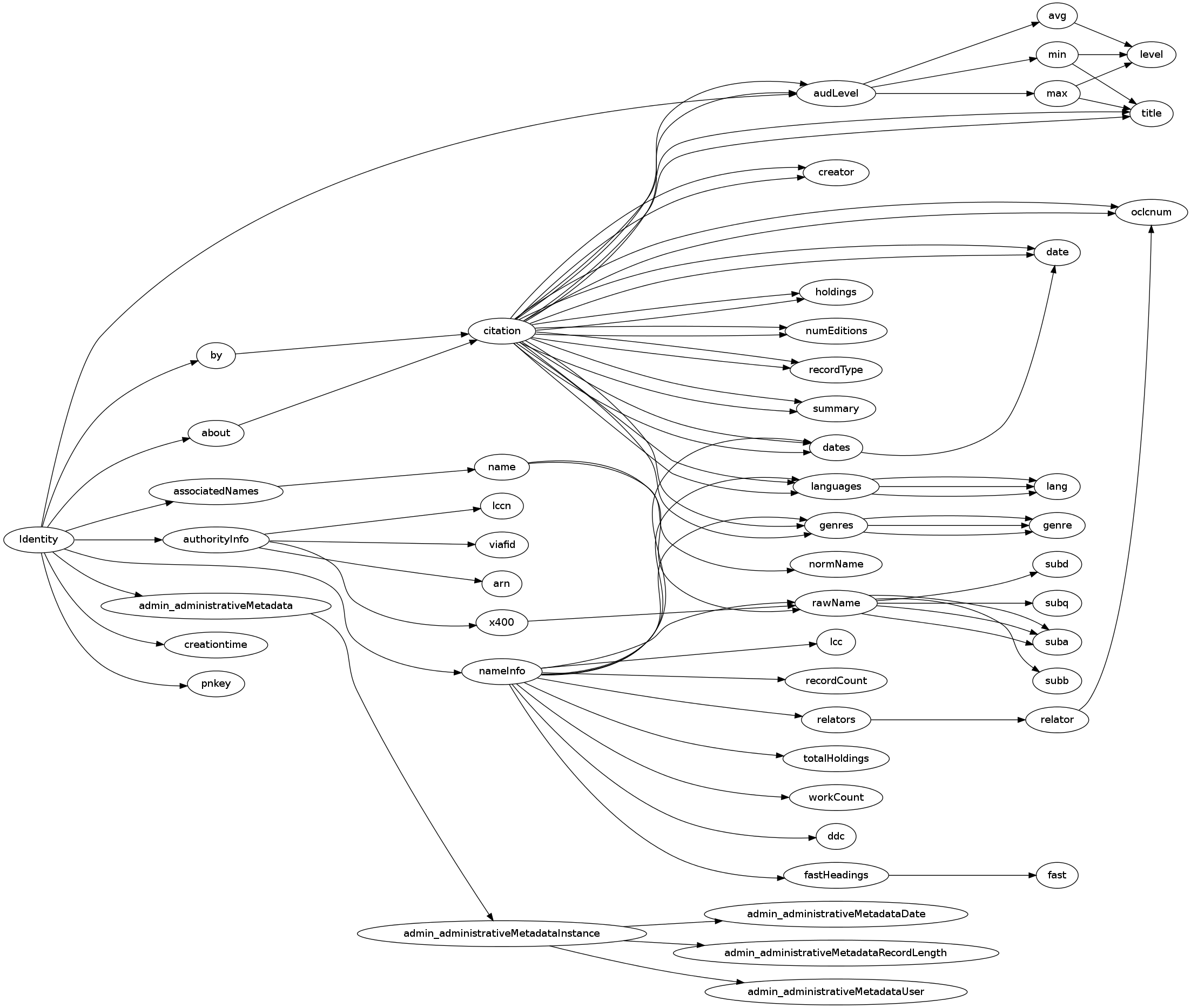
So far we’ve discussed creating a backup system, a local archive of OCRed digital sources and a bibliographic database.  We’ve also covered a number of strategies for adding new material to our local repository automatically, including search, information trapping, and spidering.  Two programs lie at the core of the workflow, DevonThink Pro and Scrivener.  When I add a new source to my local repository, I create a bibliographic record for it, then I index it in DevonThink. Once it is indexed I can use the searching, clustering and concordance tools in DevonThink to explore my sources.  Since everything that is related to my project is indexed in DT, it is the one local place where I go to look for information.  Rather than explain all of the useful things that can be done with your sources in DT (and there are a lot) I will simply refer to the articles by Steven Johnson and Chad Black that convinced me to give DT a try:

A couple of notes about DT.  If you do decide to buy the software, buy the $10 e-book on how to use the software at the same time.  There are a lot of powerful features and this is the fastest way to learn them.  Unlike Johnson, I store everything related to my project in DT.  That is why I advise bursting large documents into smaller units for better searching and clustering.  As a historian, I also tend to write books that have more chronological structure than his do, so I use a sheet in DevonThink to create a chronology that can be sorted by date, name, event, and source.  It is not as flexible as a spreadsheet, but it does not have to be.

For writing, I am using Scrivener, which allows me to draft and rearrange small units of text easily.  I can copy a passage that I’ve just written from Scrivener into DT and use the magic hat to find anything in my sources that may be related to that paragraph (just as Johnson describes).  The super-secret monograph consists of seven chapters of five subsections each.  In Scrivener, I can see the status of each of those pieces at a glance: how much has been written, how much needs to be done, and how each relates to other subsections.  Rather than facing a yawning gulf at the bottom of a word processer screen, and potential writer’s block, I can see the book take shape as I work on it.  When the draft is finished in Scrivener, it is easily compiled to whatever form that the publisher wants.  I can’t say enough good things about Scrivener.  By itself I’m sure it has doubled my writing speed.

The key is working with small enough units of text.  When you cite a source, you are typically referring to a part of it: a quote, a paragraph, a passage, an argument.  Similarly, when you write a book, you can only work on a small part of it at one time.  Inappropriate tools force you to manipulate objects at the wrong scale, usually the whole document, however long.  Better tools, such as DT and Scrivener, allow you to focus on exactly the pieces you need for the task at hand.


If you are collecting local copies of documents that you haven’t read yet, you need to use computer programs to search through and organize them.  Since all text is OCRed, it is easy enough to use Spotlight to do the searching (or a program like DevonThink: more on this in a future post).  The problem is that it does not do you much good to find out that your search term(s) appear in a book-length document.  If you have a lot of reference books in your local digital archive, you will get many hits for common search terms.  If you have to open each reference and look at each match, you are wasting your time.  Admittedly, it is faster than consulting the index of a paper book and flipping to the relevant section.  The process can be greatly sped up, however.

The trick is to take long PDFs and “burst” them into single pages.  That way, when you search for terms in your local archive, your results are in the form

  • Big Reference Book, p 72
  • Interesting Article, p 7
  • Interesting Article, p 2
  • Another Article, p 49
  • Big Reference Book, p 70
  • Interesting Article, 1

rather than

  • Interesting Article (1, 2, 7)
  • Big Reference Book (70, 72)
  • Another Article (49)

The first advantage is that you don’t have to open each individual source (like Big Reference Book) and, in effect, repeat your search to find all instances of your search terms within the document.  The second advantage is that the search algorithm determines the relevance of each particular page to your search terms, rather than the source as a whole.  So the few valuable hits in a long, otherwise irrelevant document are surfaced in a convenient manner.  Sources that are on-topic (like “Interesting Article” in the example above), will show up over and over in your results list.  If you decide you want to read the whole source, you can open the original PDF rather than opening the individual page files.

It is easy enough to write a short script to burst PDFs if you know how to program.  If you don’t, however, you can use an Automator workflow to accomplish the same results.  If you’d like, you can even turn your bursting workflow into a droplet.  I’ve attached a sample workflow to get you started.

Once you start collecting large numbers of digital sources by searching for them or using an information trapping strategy, you will find that you are often in the position of wanting to download a lot of files from a given site.  Obviously you can click on the links one at a time to make local copies, but that loses one of the main advantages of working with computers–letting them do your work for you.  Instead, you should use a program like DownThemAll (a Firefox extension), SiteSucker (a standalone program) or GNU wget (a command line tool that you call from the terminal).  Each of these automates what would otherwise be a very repetitive and thankless task.  If you have never tried this before, start by getting comfortable with one of the more user-friendly alternatives like DownThemAll or SiteSucker, then move to wget when you need more power.  You can also write your own custom programs to harvest sources, of course.  There is an introductory lesson on this in the Programming Historian.

Now imagine that you have a harvester that is not only capable of downloading files, but of extracting the hyperlinks found on each page, navigating to the new pages and downloading those also.  This kind of program is called a spider, crawler or bot.  Search engine companies make extensive use of web spiders to create a constantly updated (and constantly out-of-date), partial map of the entire internet.  For research, it is really nice to be able to spider more limited regions of the web in search of quality sources.  Again, it is not too difficult to write your own spiders (see Kevin Hemenway and Tara Calishain’s Spidering Hacks) but there are also off-the-shelf tools which will do some spidering for you.  In addition to writing my own spiders, I’ve used a number of these packages.  Here I will describe DevonAgent.

DevonAgent includes a web browser with some harvesting capabilities built in.  You can describe what you are looking for with a rich set of operators like “(Industrial BEFORE Revolution) AND (India NEAR/10 Textile*)”.  Results are displayed with both relevance ranking and with an interactive graphical topic map that you can use to navigate.  You can keep your results in an internal archive or export them easily to DevonThink.  (More on this in a future post).  You can schedule searches to run automatically, thus extending your information trapping strategy.  DevonAgent also has what are called “scanners”: filters that recognize particular kinds of information.  You can search, for example, for pages that contain PDFs, e-mail addresses, audio files, spreadsheets or webcams.  You can also specify which URLs your spider will visit (including password protected sites).  DevonAgent comes with about 80 plugins for search engines and databases, including sites like Google Scholar, IngentaConnect, the Internet Archive and Project Gutenberg.  You can also write your own plugins in XML.

DevonAgent allows you to follow links automatically and to set the depth of the search.  If you were looking at this blog post with DevonAgent, a Level 1 search would also retrieve the pages linked to by this post (for DownThemAll, etc.), it would retrieve some other pages from my blog, and so on.  A Level 2 search would retrieve all of the stuff that a Level 1 search gets, plus the pages that the DownThemAll page links to, the pages linked to in some of my other blog posts, and so on.  Since a spider is a program that you run while you are doing something else, it is OK if it goes down a lot of blind alleys in order to find things that are relatively rare.  Learning where to start and how to tune the depth of your search is an essential part of using spidering for your research.  DevonAgent will use Growl to notify you when its search is complete.  (If there is something that I am eagerly awaiting, I also use Prowl to get Growl notifications when I’m away from my computer.  But you may find that’s too much of a good thing.)


If you are just getting started with online research, there are some things that are handy to know, and a few tools you might like to set up for yourself.

Analog and digital.  When I talk to my students about the difference between analog and digital representations, I use the example of two clocks.  The first is the kind that has hour and minute hands, and perhaps one for seconds, too.  At some point you learned how to tell time on an analog clock, and it may have seemed difficult.  Since the clock takes on every value in between two times, telling time involves a process of measurement. You say, “it’s about 3:15,” but the time changes continuously as you do so.  Telling time with a digital clock, by contrast, doesn’t require you to do more than read the value on the display.  It is 3:15 until the clock says it is 3:16.  Digital representations can only take on one of a limited (although perhaps very large) number of states.  Not every digital representation is electronic.  Writing is digital, too, in the sense that there are only a finite number of characters, and instances of each are usually interchangeable.  You can print a book in a larger font, or in Braille, without changing the meaning.  Salvador Dalí’s melting clocks, however, would keep different time–which was the point, of course.

The costs are different.  Electronic digital information can be duplicated at near-zero cost, transmitted at the speed of light, stored in infinitesimally small volumes, and created, processed and consumed by machines.  This means that ideas that were more-or-less serviceable in the world before networked computers–ideas about value, property rights, communication, creativity, intelligence, governance and many other aspects of society and culture–are now up for debate.  The emergence of new rights regimes (such as open access, open content and open source) and the explosion of new information are manifestations of these changing costs.

You won’t be able to read everything.  Estimates of the amount of new information that is now created annually are staggering (2003, 2009).  As you become more skilled at finding online sources, you will discover that new material on your topic appears online much faster than you can read it.  The longer you work on something, the more behind you will get.  This is OK, because everyone faces this issue whether they realize it or not.  In traditional scholarship, scarcity was the problem: travel to archives was expensive, access to elite libraries was gated, resources were difficult to find, and so on.  In digital scholarship, abundance is the problem.  What is worth your attention or your trust?

Assume that what you want is out there, and that you simply need to locate it.  I first found this advice in Thomas Mann’s excellent Oxford Guide to Library Research.  Although Mann’s book focuses primarily on pre-digital scholarship, his strategies for finding sources are more relevant than ever.  Don’t assume that you are the best person for the job, either.  Ask a librarian for help.  You’ll find that they tend to be nicer, better informed, more helpful and more tech savvy than the people you usually talk to about your work.  Librarians work constantly on your behalf to solve problems related to finding and accessing information.

The first online tool you should master is the search engine.  The vast majority of people think that they can type a word or two into Google and choose something from the first page of millions of results.  If they don’t see what they’re looking for, they try a different keyword or give up.  When I talk to scholars who aren’t familiar with digital research, their first assumption is often that there aren’t any good online resources for their subject.  A little bit of guided digging often shows them that this is far from the truth.  So how do you use search engines more effectively?  First of all, sites have an advanced search page that lets you focus in on your topic, exclude search terms, weight some terms more than others, limit your results to particular kinds of document, to particular sites, to date ranges, and so on. Second, different search engines introduce different kinds of bias by ranking results differently, so you get a better view when you routinely use more than one.  Third, all of the major search engines keep introducing new features, so you have to keep learning new skills.  Research technique is something you practice, not something you have.

Links are the currency of the web.  Links make it possible to navigate from one context to another with a single click.  For human users, this greatly lowers the transaction costs of comparing sources.  The link is abstract enough to serve as means of navigation and able to subsume traditional scholarly activities like footnoting, citation, glossing and so on.  Furthermore, extensive hyperlinking allows readers to follow nonlinear and branching paths through texts.  What many people don’t realize is that links are constantly being navigated by a host of artificial users, colorfully known as spiders, bots or crawlers. A computer program downloads a webpage, extracts all of the links and other content on it, and follows each new link in turn, downloading the pages that it encounters along the way.  This is where search engine results come from: the ceaseless activity of millions of automated computer programs that constantly remake a dynamic and incomplete map of the web.  It has to be this way, because there is no central authority.  Anyone can add stuff to the web or remove it without consulting anyone else.

The web is not structured like a ball of spaghetti.  Research done with web spiders has shown that a lot of the most interesting information to be gleaned from digital sources lies in the hyperlinks leading into and out of various nodes, whether personal pages, documents, archives, institutions, or what have you. Search engines provide some rudimentary tools for mapping these connections, but much more can be learned with more specialized tools.  Some of the most interesting structure is to be found in social networks, because…

Emphasis is shifting from a web of pages to a web of people.  Sites like Blogger, WordPress, Twitter, Facebook, Flickr and YouTube put the emphasis on the contributions of individual people and their relationships to one another.  Social searching and social recommendation tools allow you to find out what your friends or colleagues are reading, writing, thinking about, watching, or listening to.  By sharing information that other people find useful, individuals develop reputation and change their own position in social networks.  Some people are bridges between different communities, some are hubs in particular fields, and many are lonely little singletons with one friend.  This is very different from the broadcast world, where there were a few huge hubs spewing to a thronging multitude (known as “the audience“).

Ready to jump in?  Here are some things you might try.

Customize a browser to make it more useful for research

  1. Install Firefox
  2. Add some search extensions
    1. Worldcat
    2. Internet Archive
    3. Project Gutenberg
    4. Merriam-Webster
  3. Pull down the search icon and choose “Manage Search Engines” -> “Get more search engines” then search for add-ons within Search Tools
  4. Try search refinement
    1. Install the Deeper Web add-on and try using tag clouds to refine your search
    2. Example.  Suppose you are trying to find out more about a nineteenth-century missionary named Adam Elliot.  If you try a basic Google search, you will soon discover there is an Australian animator with the same name.  Try using Deeper Web to find pages on the missionary.
  5. Add bookmarks for advanced search pages to the bookmark toolbar
    1. Google Books (note that you can set to “full view only” or “full view and preview”
    2. Historic News (experiment with the timeline view)
    3. Internet Archive
    4. Hathi Trust
    5. Flickr Commons (try limiting by license)
    6. Wolfram Alpha (try “China population”)
    7. Google Ngram Viewer
  6. You can block sites that have low quality results

Work with citations

  1. Install Zotero
    1. Try grabbing a record from the Amazon database
    2. Use Zotero to make a note of stuff you find using Search Inside on your book
    3. Under the info panel in Zotero, use the Locate button to find a copy in a library near you
    4. From the WorldCat page, try looking for related works and saving a whole folder of records in Zotero
    5. Find the book in a library and save the catalog information as a page snapshot
    6. Go into Google Books, search for full view only, download metadata and attach PDF
  2. Learn more about Zotero
  3. Explore other options for bibliographic work (e.g. Mendeley)

Find repositories of digital sources on your topic

Here are a few examples for various kinds of historical research.

  1. Canada
    1. Canadiana.org
    2. Dictionary of Canadian Biography online
    3. Repertory of Primary Source Databases
    4. Our Roots
    5. British Columbia Digital Library
    6. Centre for Contemporary Canadian Art
  2. US
    1. Library of Congress Digital Collections
    2. American Memory
    3. NARA
    4. Calisphere
    5. NYPL Digital Projects
  3. UK and Europe
    1. Perseus Digital Library
    2. UK National Archives
    3. Old Bailey Online
    4. London Lives
    5. Connected Histories
    6. British History Online
    7. British Newspapers 1800-1900
    8. English Broadside Ballad Archive
    9. EuroDocs
    10. Europeana
    11. The European Library
    12. Gallica
  4. Thematic (e.g., history of science and medicine)
    1. Complete Works of Charles Darwin Online
    2. Darwin Correspondence Project
    3. National Library of Medicine Digital Projects

Capture some RSS feeds

  1. Install the Sage RSS feed reader in Firefox (lots of other possibilities, like Google Reader)
    1. Go to H-Net and choose one or more lists to monitor; drag the RSS icons to the Sage panel and edit properties
    2. Go to Google News and create a search that you’d like to monitor; drag RSS to Sage panel and edit properties
    3. Go to Hot New Releases in Expedition and Discovery at Amazon and subscribe to RSS feed
  2. Consider signing up for Twitter, following a lot of colleagues and aggregating their interests with Tweeted Times (this is how Digital Humanities Now works)

Discover some new tools

  1. The best place to start is Lisa Spiro’s Getting Started in the Digital Humanities and Digital Research Tools wiki
Follow

Get every new post delivered to your Inbox.

Join 68 other followers